education
Raw Device Mapping: A Complete Guide

Introduction to Raw Device Mapping (RDM)
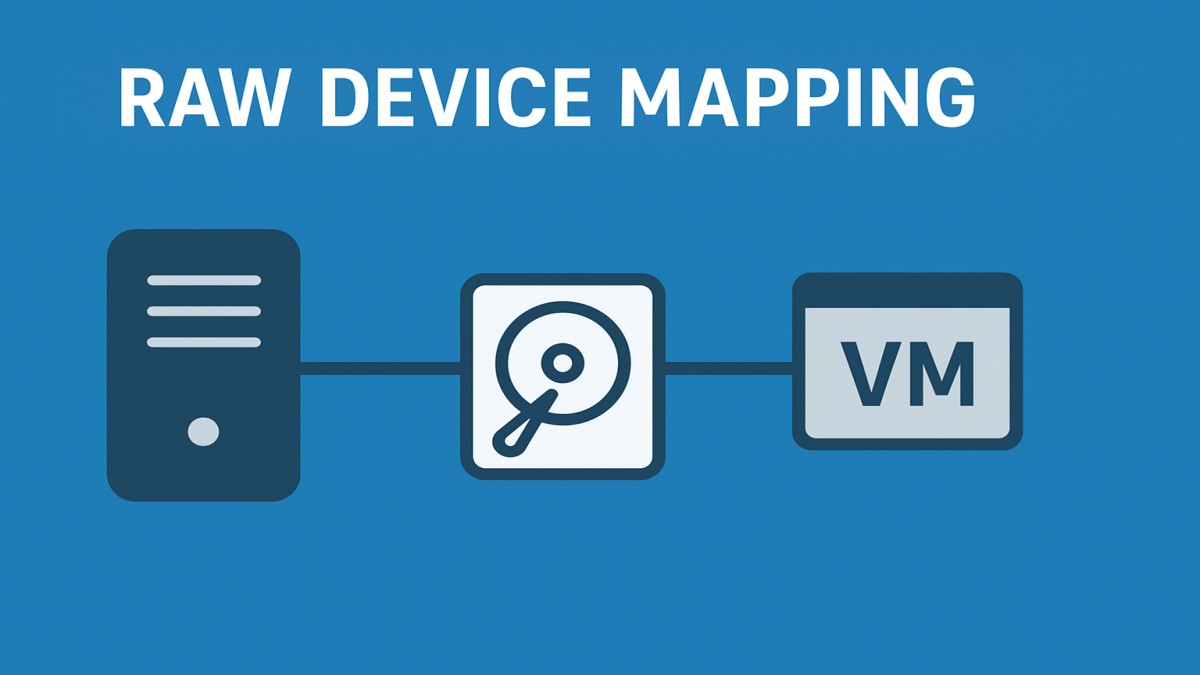
Ever wondered how virtualization platforms like VMware connect virtual machines to physical storage? That’s where Raw Device Mapping (RDM) steps in. RDM acts as a bridge between a virtual machine (VM) and a physical storage device, giving the VM almost direct access to the disk while still maintaining some virtualization benefits.
In simpler terms, if VMFS is like living in an apartment building (shared resources), RDM is like having a private house—you get direct access with fewer restrictions.
Understanding Virtualization and Storage
Before diving deeper, let’s talk about virtualization basics. VMware creates VMs that run on top of a hypervisor. Normally, these VMs use VMFS (Virtual Machine File System) datastores stored on shared storage. However, certain applications—like high-performance databases or clustering systems—need direct access to storage hardware, and that’s when RDM comes in.
What Exactly is Raw Device Mapping?
RDM is essentially a mapping file stored in a VMFS datastore. This file points directly to a physical LUN (Logical Unit Number) on a SAN (Storage Area Network). Instead of working with a virtual disk (.vmdk), the VM accesses the storage almost as if it were a physical server.
How RDM Works
- The RDM file acts as a proxy between the VM and the storage device.
- The VM still sees a virtual disk, but the I/O operations are passed directly to the raw LUN.
- This setup allows features like snapshots and VMotion (depending on mode) while still granting near-physical access.
Types of RDM
There are two compatibility modes for RDM:
1. Virtual Compatibility Mode
- Functions like a regular VMDK file.
- Supports snapshots and cloning.
- Best for flexibility and backup needs.
2. Physical Compatibility Mode
- Provides direct block-level access.
- No snapshots or cloning allowed.
- Best for clustering or applications requiring true raw access.
RDM vs VMFS (Virtual Machine File System)
| Feature | RDM | VMFS Datastore |
|---|---|---|
| Storage access | Near-direct | Virtualized layer |
| Snapshots | Only in virtual mode | Fully supported |
| Use case | Clustering, high I/O apps | General-purpose VMs |
| Management | More complex | Easier |
Advantages of Raw Device Mapping
- Direct storage access → Better performance for certain workloads.
- Cluster support → Necessary for MSCS and other clustering technologies.
- Migration ease → Some compatibility with VMotion (virtual mode).
Limitations of RDM
- Complex to manage compared to VMFS.
- Limited features in physical mode (no snapshots).
- Backup and replication can be tricky.
When to Use RDM
RDM shines in these scenarios:
- Running high-performance databases.
- Using Microsoft Cluster Service (MSCS).
- Applications requiring low-latency storage access.
When Not to Use RDM
Avoid RDM for:
- Regular file servers, web servers, or general workloads.
- Environments where simplicity and flexibility are top priorities.
RDM and VMware Clustering
RDM plays a critical role in clustering setups like:
- MSCS (Microsoft Cluster Service): Requires shared storage access.
- VMware HA (High Availability): Works in virtual mode for failover.
Performance Considerations
While RDM does provide faster access in some cases, the performance difference compared to VMFS is often minimal with modern storage systems. The real advantage comes in compatibility with clustering software.
Migration and RDM
- VMotion works with both modes.
- Storage vMotion works only with virtual compatibility mode.
- Physical mode restricts some VMware features.
Alternatives to RDM
VMware has been shifting focus to Virtual Volumes (vVols).
- vVols offer direct LUN access while still integrating with VMware features.
- They’re simpler to manage compared to RDM.
Future of RDM in Virtualization
With the rise of vVols and improvements in VMFS performance, RDM usage is declining. Still, it remains relevant for specific use cases like MSCS and certain database clusters.
Step-by-Step: Configuring RDM in VMware
- Identify the LUN you want to map.
- Create an RDM mapping file in the VMFS datastore.
- Attach the RDM to the virtual machine.
- Choose between virtual or physical compatibility mode.
- Configure clustering or application-specific settings.
Conclusion
Raw Device Mapping (RDM) is a specialized tool in VMware environments. While not as common today due to alternatives like vVols, it remains essential for certain workloads such as clustering and high-performance databases. If your environment demands direct, near-physical storage access, RDM can still be the right choice—but for most everyday workloads, VMFS or vVols are easier and more future-proof.
FAQs
Q1: Is RDM faster than VMFS?
Not always. Performance gains are minimal with modern storage, but RDM helps in compatibility with certain apps.
Q2: Can I take snapshots of an RDM disk?
Yes, but only in virtual compatibility mode. Physical mode doesn’t allow snapshots.
Q3: Is RDM still recommended in 2025?
It’s less common now, with vVols being the preferred choice, but RDM is still relevant for clustering.
Q4: Can I migrate RDM-based VMs with VMotion?
Yes, VMotion works fine, but Storage vMotion is limited to virtual mode RDMs.
Q5: What’s the main alternative to RDM?
VMware Virtual Volumes (vVols) are now the go-to alternative.

Freelance Jobs for Beginners USA (Start with No Experience)

Side Hustle Ideas from Home USA (No Experience Needed) – Beginner’s Guide

Online Jobs from Home USA (Daily Pay) – Start Earning Instantly

Beton Celular Autoclavizat: The Future of Lightweight, Eco-Friendly Construction

Goblets: A Timeless Symbol of Elegance and Celebration

AI Tools for Making Money Online Free (Best 2026 Guide)

Passive Income Apps USA Free: Earn Money Effortlessly in 2026

How to Earn Money from Home Without Investment

ChatGPT Alternatives Free No Login (2026 Guide)

Everything You Need to Know About Koeas

Ishraq Time in Delhi: What It Is, When It Happens, and Why It Matters
Beton Celular Autoclavizat: The Future of Lightweight, Eco-Friendly Construction

Read OPM Manga Online: Where and How to Enjoy One Punch Man Legally

Technisches Gymnasium: Your Gateway to Engineering and Technology

Why Every Small Business Needs a Digital Marketing Agency
Goblets: A Timeless Symbol of Elegance and Celebration

Gold Shower: Nature’s Cascading Yellow Wonder

The Indian Bow: A Legacy of Precision, Power, and Tradition

Robert Provost: A Life of Leadership, Community, and Vision

Are Political Donations Tax Deductible?
Freelance Jobs for Beginners USA (Start with No Experience)
Side Hustle Ideas from Home USA (No Experience Needed) – Beginner’s Guide
Online Jobs from Home USA (Daily Pay) – Start Earning Instantly
Beton Celular Autoclavizat: The Future of Lightweight, Eco-Friendly Construction
Goblets: A Timeless Symbol of Elegance and Celebration
AI Tools for Making Money Online Free (Best 2026 Guide)
Passive Income Apps USA Free: Earn Money Effortlessly in 2026
How to Earn Money from Home Without Investment
ChatGPT Alternatives Free No Login (2026 Guide)
Everything You Need to Know About Koeas

 entertainment7 months ago
PYT Telegram: A Complete Guide to Understanding, Using, and Maximizing It

 entertainment7 months ago
OnionFlix: Everything You Need to Know About This Streaming Website
- others6 months ago
Nook vs Kindle: Which E-Reader Is Right for You?
- gaming7 months ago
Melisandre: The Enigmatic Priestess of Game of Thrones