Technology
Type-C USB vs Thunderbolt – What’s the Real Difference?

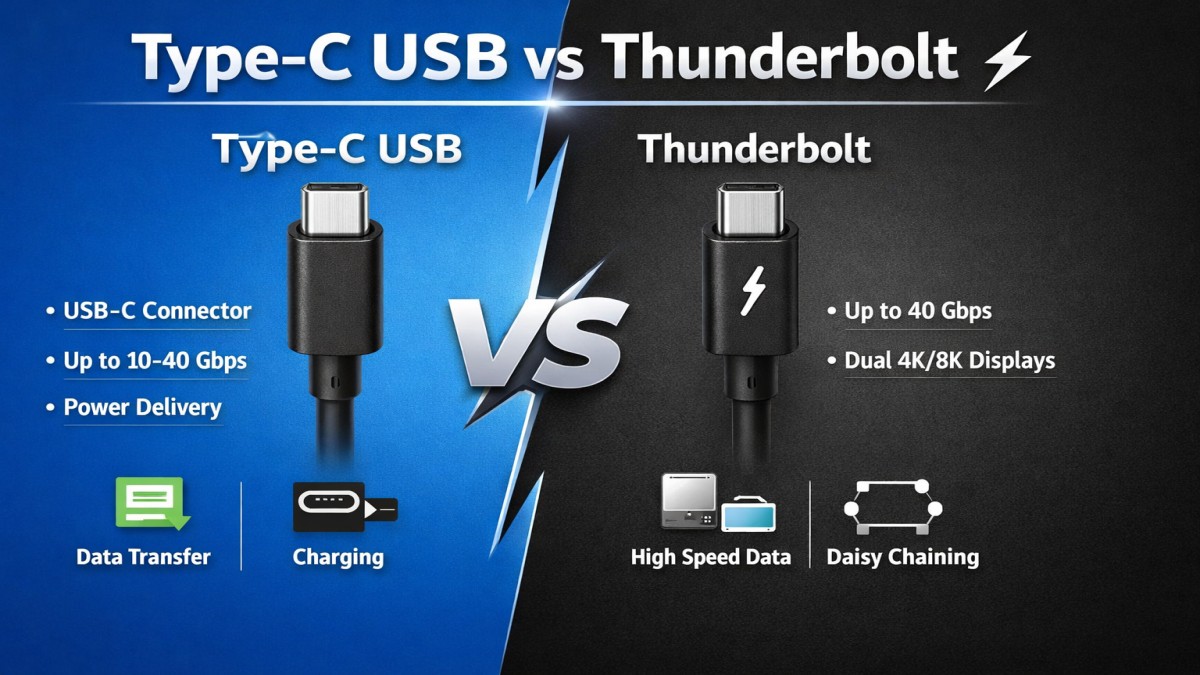
Type-C USB vs Thunderbolt. If you’ve ever stared at your laptop ports wondering why everything looks the same but behaves differently, you’re not alone. Type-C USB vs Thunderbolt have turned modern connectivity into a bit of a puzzle. Same shape, same plug, wildly different performance. Think of it like two cars that look identical—one’s a family sedan, the other’s a Formula 1 racer. Let’s break it all down in plain English.
Understanding Modern Connectivity
Why Ports Matter More Than Ever
Our laptops are thinner, our devices are smarter, and cables now do more than just charge. A single port can power your laptop, connect a 4K monitor, transfer massive files, and hook up external GPUs. That’s why understanding ports isn’t nerdy anymore—it’s practical.
The Confusion Around USB-C and Thunderbolt
Here’s the main issue: USB-C is a connector, while Thunderbolt is a technology. They share the same physical port, which causes endless confusion. Let’s untangle that mess.
What Is USB Type-C?
USB-C as a Connector, Not a Speed
USB-C refers to the shape of the connector, not how fast data moves. This is the most misunderstood part. USB-C is like a door—what matters is what’s happening behind it.
Physical Design and Reversible Plug
USB-C is small, oval, and reversible. No more flipping the cable three times like a ritual before it fits. That alone made it popular.
Devices That Use USB-C
Phones, laptops, tablets, headphones, power banks, gaming consoles—you name it. USB-C is everywhere.
USB Standards That Use Type-C
USB 2.0, USB 3.2, and USB4 Explained
USB-C can carry different USB standards:
- USB 2.0 – Old and slow
- USB 3.2 – Much faster
- USB4 – Modern and powerful
Data Transfer Speeds Compared
- USB 2.0: up to 480 Mbps
- USB 3.2: up to 20 Gbps
- USB4: up to 40 Gbps
Power Delivery Capabilities
USB-C supports USB Power Delivery (PD), which can deliver up to 240W with newer standards. That’s enough to charge laptops, monitors, and more.
What Is Thunderbolt?
A Brief History of Thunderbolt
Developed by Intel (with Apple), Thunderbolt was built for speed and performance. It’s aimed at professionals who move huge amounts of data.
Thunderbolt 3
- Uses USB-C connector
- Up to 40 Gbps
- Supports dual 4K displays
Thunderbolt 4
- Same speed as TB3
- Stricter requirements
- Better security and compatibility
How Thunderbolt Uses USB-C
Same Port, Different Technology
Every Thunderbolt 3 and 4 port uses USB-C, but not every USB-C port supports Thunderbolt. The lightning bolt logo is your best friend here.
Certification and Hardware Requirements
Thunderbolt requires special controllers and certified cables. That’s why it costs more—but also why it performs better.
Type-C USB vs Thunderbolt – Core Differences
Speed Comparison
Type-C USB vs Thunderbolt both can hit 40 Gbps, but Thunderbolt guarantees it. USB-C doesn’t unless it’s USB4 with full support.
Display Support
- USB-C: Usually one display
- Thunderbolt: Up to two 4K or one 8K display
Power Delivery
Type-C USB vs Thunderbolt both support charging, but Thunderbolt devices often manage power more efficiently across multiple peripherals.
Daisy-Chaining Devices
Thunderbolt lets you chain multiple devices through a single port. USB-C usually doesn’t.
Compatibility Explained Simply
Plugging USB-C into Thunderbolt Ports
Works perfectly. Thunderbolt ports are backward compatible.
Plugging Thunderbolt into USB-C Ports
It fits—but Thunderbolt features won’t work. It’ll behave like a normal USB device.
Real-World Use Cases
For Everyday Users
Charging, file transfers, basic monitors—USB-C is more than enough.
For Creators and Professionals
Video editors, 3D artists, engineers—Thunderbolt is a lifesaver. Faster storage, multiple displays, fewer cables.
For Gamers and Power Users
External GPUs and ultra-fast SSDs? Thunderbolt all the way.
Cost Differences
Cables
Thunderbolt cables cost more because they’re certified and active.
Devices and Accessories
Thunderbolt docks and drives are pricier—but they replace multiple adapters.
Which One Should You Choose?
Decision Based on Needs
If you don’t know you need Thunderbolt, you probably don’t. USB-C covers most daily tasks.
Future-Proofing Your Setup
Buying Thunderbolt now can save upgrades later—especially for laptops.
Common Myths and Misunderstandings
“USB-C Is Always Fast”
False. Speed depends on the USB version behind the port.
“All USB-C Cables Are the Same”
Also false. Some only charge, some transfer data, some do everything.
The Future of USB-C and Thunderbolt
USB4 and Thunderbolt Convergence
USB4 is heavily based on Thunderbolt 3, which means the gap is shrinking.
What to Expect Next
Fewer ports, smarter cables, and faster everything.
Conclusion
Type-C USB vs Thunderbolt may look identical, but they serve different audiences. USB-C is the universal workhorse—affordable, flexible, and everywhere. Thunderbolt is the high-performance beast—fast, powerful, and built for demanding workflows. Knowing the difference saves money, frustration, and a whole lot of cable chaos.
FAQs
1. Is Thunderbolt faster than USB-C?
Thunderbolt guarantees high speeds, while USB-C speed depends on the USB version.
2. Can I use a USB-C cable with Thunderbolt?
Yes, but you won’t get Thunderbolt performance unless the cable is certified.
3. Does Thunderbolt charge devices?
Yes, Thunderbolt supports power delivery just like USB-C.
4. How do I know if my port is Thunderbolt?
Look for the lightning bolt icon near the port.
5. Is USB4 the same as Thunderbolt?
Not exactly, but USB4 is very close and built on Thunderbolt technology.

Consultative Selling Techniques: A Complete Guide to Building Customer Trust in 2026

Sales Objection Handling: A Complete Guide to Closing More Deals in 2026

Customer Closing Techniques: A Complete Guide to Converting Prospects into Buyers (2026)

Customer Conversion Process: A Complete Guide to Turning Visitors into Loyal Customers (2026)

Sales Funnel Examples: A Complete Guide to Converting More Customers (2026)

Lead Qualification Framework: A Complete Guide to Finding High-Quality Customers (2026)

Website Credibility Factors: A Complete Guide to Building Trust Online (2026)

Online Reputation Monitoring: A Complete Guide to Protecting Your Brand in 2026

Customer Testimonial Strategy: A Complete Guide to Building Trust and Increasing Sales (2026)

Business Storytelling Framework: A Complete Guide to Building Strong Brand Connections (2026)
Consultative Selling Techniques: A Complete Guide to Building Customer Trust in 2026
Sales Objection Handling: A Complete Guide to Closing More Deals in 2026
Customer Closing Techniques: A Complete Guide to Converting Prospects into Buyers (2026)
Customer Conversion Process: A Complete Guide to Turning Visitors into Loyal Customers (2026)
Sales Funnel Examples: A Complete Guide to Converting More Customers (2026)
Lead Qualification Framework: A Complete Guide to Finding High-Quality Customers (2026)
Website Credibility Factors: A Complete Guide to Building Trust Online (2026)
Online Reputation Monitoring: A Complete Guide to Protecting Your Brand in 2026
Customer Testimonial Strategy: A Complete Guide to Building Trust and Increasing Sales (2026)
Business Storytelling Framework: A Complete Guide to Building Strong Brand Connections (2026)

 entertainment1 year ago
PYT Telegram: A Complete Guide to Understanding, Using, and Maximizing It

 entertainment1 year ago
OnionFlix: Everything You Need to Know About This Streaming Website
- education1 year ago
How to Become a Software Engineer: A Complete Guide
- others12 months ago
Nook vs Kindle: Which E-Reader Is Right for You?